Monitoring - How to collect Business Information in Application Insights
Sometimes you have business requirements to know how many times something happened. An easy way to do that is by using Application Insights Telemetry. In this post, we will see how to do this configuration.
Creating the Azure Application Insights
Create a new Application Insights in your Azure account. You can create with the ARM Template below:
To run the ARM Template with Az CLI, you can use these commands:
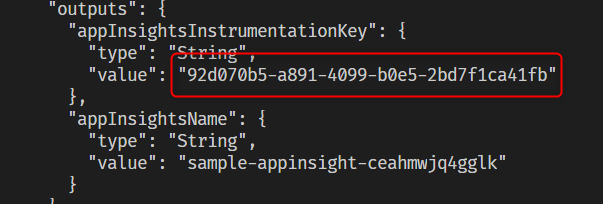
az group create -n RG-Samples -l northeurope az deployment group create -g RG-Samples — template-file .\appInsights.jsonIt will return an Instrumentation Key as output, save this value to use later.
Creating the Asp Net Project
Create a new MVC application and add the package Microsoft.ApplicationInsights.AspNetCore:
dotnet new mvc dotnet add package Microsoft.ApplicationInsights.AspNetCoreNow in the Startup.cs file, we need to configure the Application Insights Telemetry.
Go to the method ConfigureServices and add the line services.AddApplicationInsightsTelemetry();
At the end of the file Views/Home/Index.cshtml add a button to call the event:
In the HomeController.cs, add a private variable with the type *TelemetryClient and *add to the constructor a variable to assign it. Also, add a new method to call your Event Button.
In the appSettings.json, replace the content as below and substituting the Instrumentation Key with the value collected in the steps above:
Collecting and searching data in Application Insights
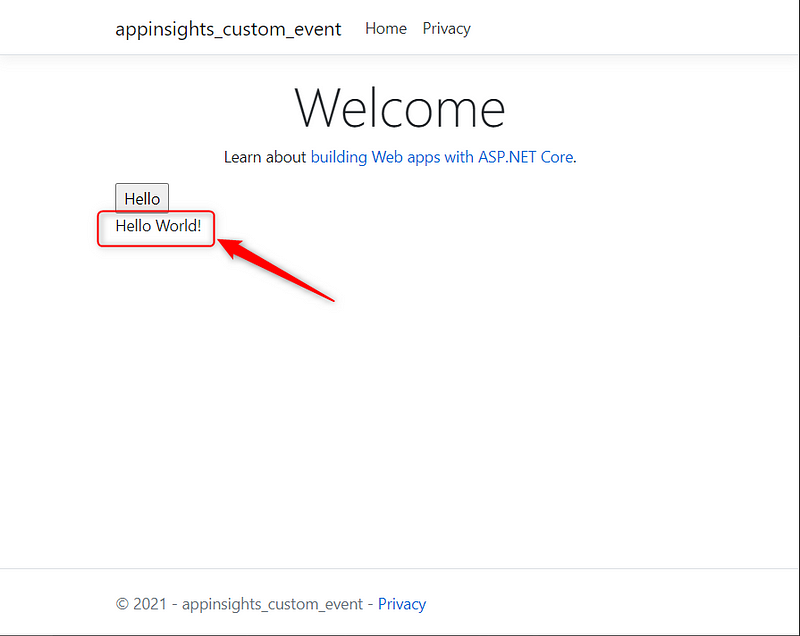
Run the application with the command dotnet run and open https://localhost:5001 in your browser. Now click some times in Hello to generate data in the application insights:

In Azure Portal, open the Application Insights created, and click in search: